
• Support
  • Get Apps
×
  • Support

Getting Started

1
  • Installing Radius Bundles

Bundle Configuration

10
  • Types of Bundle
  • Fixed Bundle
  • Buy X Get Y
  • BOGO (Buy One Get One)
  • Volume Discount
  • Mix & Match Bundle
  • Discount Types
  • Scheduling Bundles
  • Bundle Status Lifecycle
  • Variant Picker

Analytics

2
  • Analytics
  • Exporting Analytics to CSV

Settings

5
  • General Settings
  • Style Customizer
  • Labels
  • Advanced Settings
  • Tools

Storefront

1
  • Setting Up the Storefront Widget

Troubleshooting & FAQs

2
  • Frequently Asked Questions
  • Common Issues

Managing Bundles

3
  • Bundle As Product
  • Import and Export Bundles
  • Ask Sidekick About Your Bundles
  • Home
  • Docs
  • Settings
  • Advanced Settings
View Categories

Advanced Settings

1 min read

0:00 / 1:07
  • View as Markdown Open this page as plain Markdown (opens in a new tab)
  • Open in ChatGPT Ask questions about this page (opens in a new tab)
  • Open in Claude Ask questions about this page (opens in a new tab)
  • Open in Google AI Studio Ask questions about this page (Google account required) (opens in a new tab)

The Advanced tab is for merchants who want to go beyond the built-in style controls. It is a Pro feature. If you don’t have CSS knowledge, leave this tab alone — the Style Customizer covers visual customization without touching code.

For developers or merchants who need pixel-perfect control beyond the visual editor.
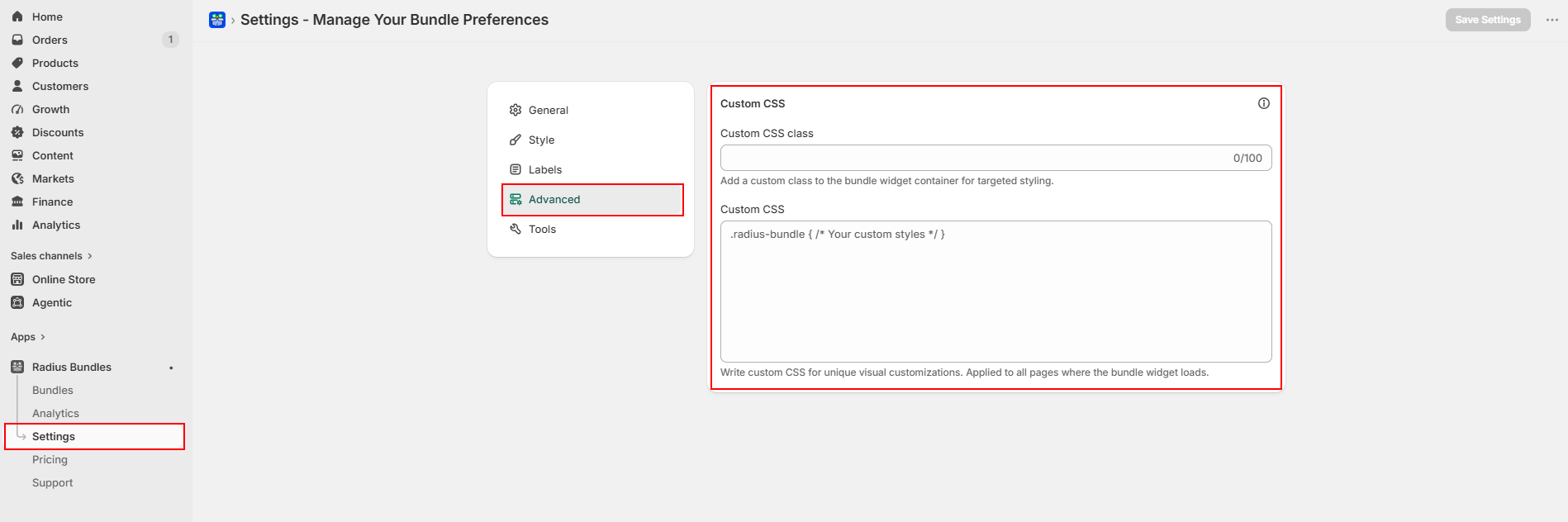
Custom CSS class — Add a custom class name to the bundle widget container, so you can target it with your own theme CSS for specific styling.

Custom CSS — Write your own CSS rules that apply to all pages where the bundle widget loads. Use the .radius-bundle selector as your starting point. This overrides all visual editor settings.

Tip: Most merchants won’t need this. Use it only if the Style settings don’t cover a specific design requirement.

When to Change These #

  • Theme conflict: Your theme’s CSS is overriding widget styles. Add a custom class and use it as a higher-specificity selector.
  • Typography: The widget’s font doesn’t match your store font. Override font-family on the widget container.
  • Brand-specific styling: You want the widget to use a layout or visual treatment that the Style Customizer doesn’t expose as a control.
What are your Feelings

Share This Article :

  • Facebook
  • X
  • LinkedIn
  • Pinterest
Still stuck? How can we help?

How can we help?

Updated on July 28, 2026
LabelsTools
Table of Contents
  • When to Change These
Copyright© 2026 RadiusDocs by RadiusTheme