
It is better if you complete these steps before running the app
1.Activating REST API

Then copy the rest api key shown on above.
2.Configuring API in the app

Change these keys. You will get this file in Project>lib>util>app_strings.dart this directory.
3.Change google map api key and Admob App ID

Change these keys. You will get this file in Project>android>app>src>main>AndroidManifest.xml this directory.
4.Run the project on simulator
If you want to run the project on a simulator then just select a device and click on run icon mark as below screenshot.

After click on run icon it will compile the program and you will able to see the output like this

5.Run the project on Real Device Android
Please turn on usb debugging on your android phone and connect with your computer using a usb cable.
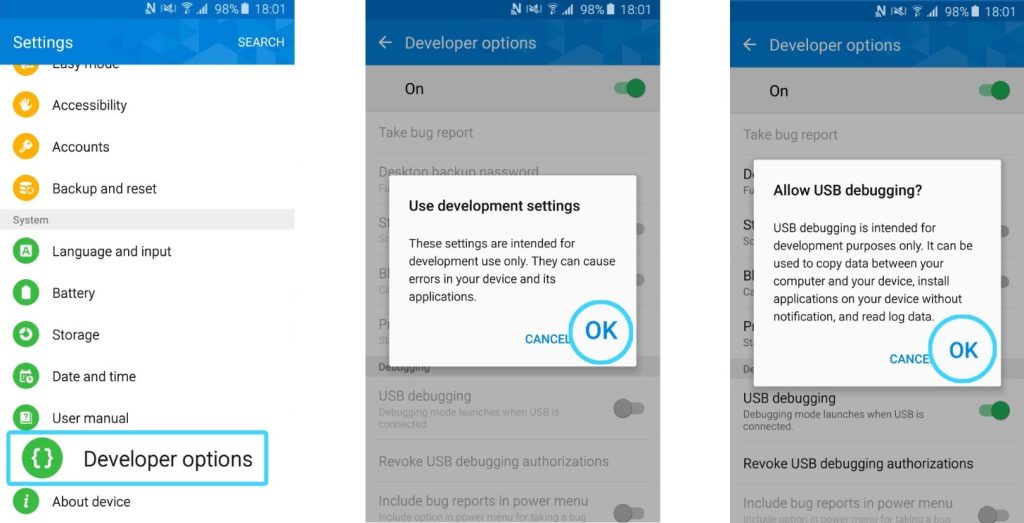
Then just select your device on android studio and click on run icon same way as we do for run on simulator.
5.Run the project on IOS
Before run the program on IOS you need to run a command for pod install on your project
Open your project terminal
type cd ios and press enter. It will move you on IOS Directory.
Then type pod install and hit enter. It will install all the necessary pod.
After that Go back to your project directory from your IOS directory just type cd .. and hit enter.

Then open your project with Xcode. Go to your project IOS directory and open the podfile then just click on Open ios/macos module in xcode. It will open IOS module on your xcode. Then just select a IOS Simulator and click on run icon on xcode. It will compile the program and you will able to see the output on your IOS Simulator.


If you want to run this project on IOS real device then just connect your IOS phone with your mac via usb cable and then select your device on xcode> click on run >
Then program will compile and you will see output on your Iphone.
That’s it all the way to compile the project perfectly.


