• Classified Listing Docs
    • Classified Listing Plugin
    • Classified Listing All Addons
    • Classified Listing Mobile App
    • Classima Mobile APP
    • Listygo Mobile App
    • Homlisti Mobile App
  • Woocommerce Plugins Docs
    • ShopBuilder Elementor Addon
    • Woo Variation Swatches
    • Woo Variation Gallery
    • Zilly Mobile App
  • General Plugins Docs
    • The Post Grid
    • Testimonial Slider
    • Team Members
    • Food Menu
    • Review & Schema
    • Portfolio
    • Business Review
  • Our Plugins
    • The Post Grid
    • Classified Listing
    • ShopBuilder
    • Food Menu
    • Team
    • Portfolio
    • Testimonial Slider
    • Review & Schema
    • See All Plugins
  • Buy Now
×
  • Classified Listing Docs
    • Classified Listing Plugin
    • Classified Listing All Addons
    • Classified Listing Mobile App
    • Classima Mobile APP
    • Listygo Mobile App
    • Homlisti Mobile App
  • Woocommerce Plugins Docs
    • ShopBuilder Elementor Addon
    • Woo Variation Swatches
    • Woo Variation Gallery
    • Zilly Mobile App
  • General Plugins Docs
    • The Post Grid
    • Testimonial Slider
    • Team Members
    • Food Menu
    • Review & Schema
    • Portfolio
    • Business Review
  • Our Plugins
    • The Post Grid
    • Classified Listing
    • ShopBuilder
    • Food Menu
    • Team
    • Portfolio
    • Testimonial Slider
    • Review & Schema
    • See All Plugins

Getting Started

2
  • Required Plugin & Themes
  • Purchase the APP

App Installation Preparation

3
  • Required Software and Tools
  • Installation
  • Running the app in device

App Configuration

15
  • App Configuration
  • Configuring App.json file
  • Configuring package.json file
  • Configuring Colors
  • Activating Rest API
  • Configuring Assets (Icon, Logo, Splash etc.) and other things (App Name)
  • Configuring backend related information & In App Pagination
  • App Translation / Changing App Languag
  • Changing all app static texts
  • Map & Location related settings
  • Push Notification
  • Admob (Google Ads) Settings
  • Firebase configuration for OTP verification
  • Misc. Configuration
  • Seller Verification Configuration for App

Social Login

3
  • Apple Login
  • Google Login
  • Facebook Login

Building the Project for Production

4
  • Building the Project for Production
  • General Process
  • iOS Version
  • Android Version

App Build Services (Start from $100)

4
  • NPM error (Invalid version)
  • Common Issue
  • Htaccess file
  • App Build Services (Start from $100)

Misc

3
  • Play store data safety configuration
  • Must perform this before app submission
  • How to Build the APP (Videos)
  • Home
  • Docs
  • Building the Project for Production
  • Android Version
View Categories

Android Version

1 min read

0:00 / 1:16
  • View as Markdown Open this page as plain Markdown (opens in a new tab)
  • Open in ChatGPT Ask questions about this page (opens in a new tab)
  • Open in Claude Ask questions about this page (opens in a new tab)
  • Open in Google AI Studio Ask questions about this page (Google account required) (opens in a new tab)

Follow this process to build Android Version #

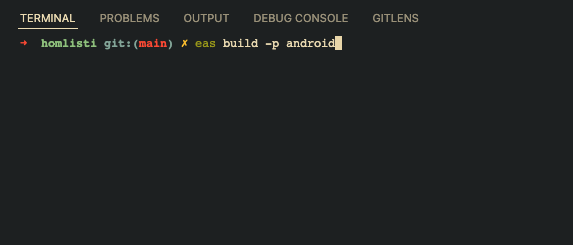
Step1: Now run command: “eas build -p android” or run “eas build” and select android. It will start android app bundle building process.

eas build -p android
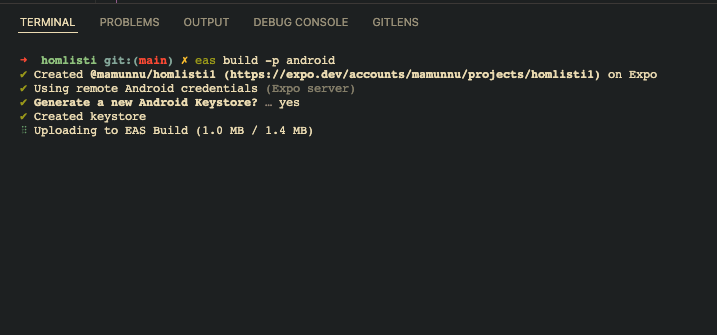
Step 2: The first time you build the project you will be asked whether you’d like to upload a keystore or have expo handle it for you. If you don’t know what a keystore is, you can have expo generate one for you. Otherwise, feel free to upload your own.
Step 3: Wait for the build to finish. After finishing the build, you’ll get a direct download link in the terminal window. Besides, the file will be available for downloading for the next 29 days from the day of building in your expo account. You can simply log into your expo account and click on builds option, that will give you the latest builds to download.

After downloading the file, you can upload it to the play store. Play store only allows app bundle (.aab file) to upload.

If you want to create a simulator build or apk file, follow the below process:
–
Run the following command “eas build -p android -e test”.

eas build -p android -e test


– This will create an apk file. You’ll be able to download and install it to any android device or simulator

What are your Feelings

Share This Article :

  • Facebook
  • X
  • LinkedIn
  • Pinterest
Still stuck? How can we help?

How can we help?

Updated on March 6, 2025
iOS Version
Table of Contents
  • Follow this process to build Android Version
Copyright© 2026 RadiusDocs by RadiusTheme