• Classified Listing Docs
    • Classified Listing Plugin
    • Classified Listing All Addons
    • Classified Listing Mobile App
    • Classima Mobile APP
    • Listygo Mobile App
    • Homlisti Mobile App
  • Woocommerce Plugins Docs
    • ShopBuilder Elementor Addon
    • Woo Variation Swatches
    • Woo Variation Gallery
    • Zilly Mobile App
  • General Plugins Docs
    • The Post Grid
    • Testimonial Slider
    • Team Members
    • Food Menu
    • Review & Schema
    • Portfolio
    • Business Review
  • Our Plugins
    • The Post Grid
    • Classified Listing
    • ShopBuilder
    • Food Menu
    • Team
    • Portfolio
    • Testimonial Slider
    • Review & Schema
    • See All Plugins
  • Buy Now
×
  • Classified Listing Docs
    • Classified Listing Plugin
    • Classified Listing All Addons
    • Classified Listing Mobile App
    • Classima Mobile APP
    • Listygo Mobile App
    • Homlisti Mobile App
  • Woocommerce Plugins Docs
    • ShopBuilder Elementor Addon
    • Woo Variation Swatches
    • Woo Variation Gallery
    • Zilly Mobile App
  • General Plugins Docs
    • The Post Grid
    • Testimonial Slider
    • Team Members
    • Food Menu
    • Review & Schema
    • Portfolio
    • Business Review
  • Our Plugins
    • The Post Grid
    • Classified Listing
    • ShopBuilder
    • Food Menu
    • Team
    • Portfolio
    • Testimonial Slider
    • Review & Schema
    • See All Plugins

Getting Started

2
  • Required Plugin & Themes
  • Purchase the APP

App Installation Preparation

3
  • Required Software and Tools
  • Installation
  • Running the app in device

App Configuration

15
  • App Configuration
  • Configuring App.json file
  • Configuring package.json file
  • Configuring Colors
  • Activating Rest API
  • Configuring Assets (Icon, Logo, Splash etc.) and other things (App Name)
  • Configuring backend related information & In App Pagination
  • App Translation / Changing App Languag
  • Changing all app static texts
  • Map & Location related settings
  • Push Notification
  • Admob (Google Ads) Settings
  • Firebase configuration for OTP verification
  • Misc. Configuration
  • Seller Verification Configuration for App

Social Login

3
  • Apple Login
  • Google Login
  • Facebook Login

Building the Project for Production

4
  • Building the Project for Production
  • General Process
  • iOS Version
  • Android Version

App Build Services (Start from $100)

4
  • NPM error (Invalid version)
  • Common Issue
  • Htaccess file
  • App Build Services (Start from $100)

Misc

3
  • Play store data safety configuration
  • Must perform this before app submission
  • How to Build the APP (Videos)
  • Home
  • Docs
  • Building the Project for Production
  • General Process
View Categories

General Process

1 min read

0:00 / 1:16
  • View as Markdown Open this page as plain Markdown (opens in a new tab)
  • Open in ChatGPT Ask questions about this page (opens in a new tab)
  • Open in Claude Ask questions about this page (opens in a new tab)
  • Open in Google AI Studio Ask questions about this page (Google account required) (opens in a new tab)

Follow the following process to Build the project for production release #

Step 1: Before starting the build process, please configure your app.json file which is located at the project root directory.
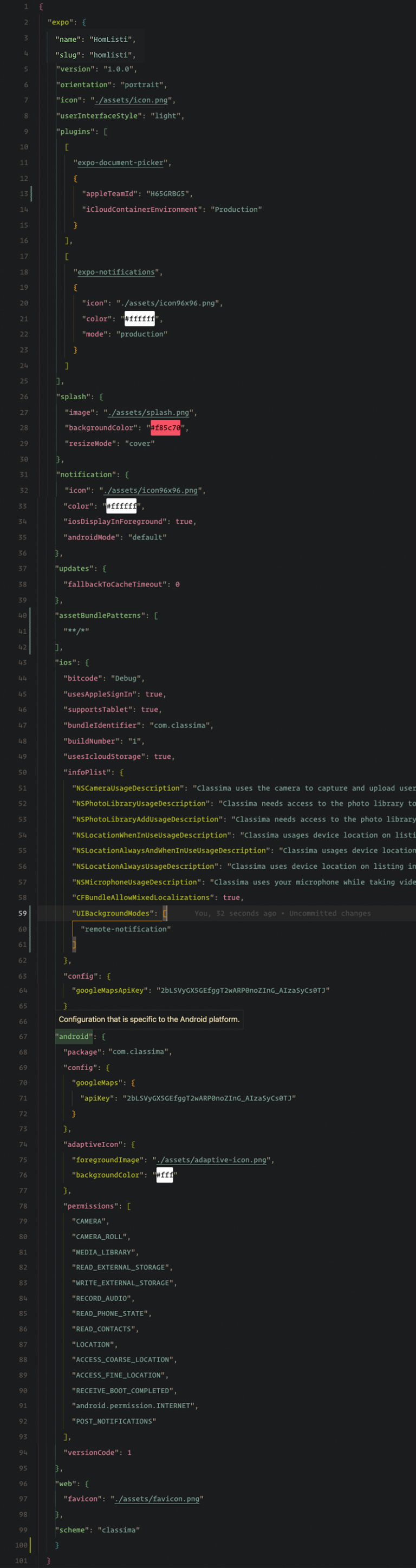
1.1) Put App name under “name” property.

1.2) Put version number under “version” property.

1.3) Put your app’s slug under “slug” property (lowercase without space).

1.4) The iOS “bundleIdentifier” and Android “package” fields use reverse DNS notation but don’t have to be related to a domain. Replace “com. yourappname” with whatever makes sense for your app. (suppose your domain is https://www.mysite.com and your app name is MyApp or MySite. In this case the suggested “bundleIdentifier” for iOS and “package” for android can be “com.mysite” or “com.myapp” or “com.mysite.myapp” or anything else)

1.5) “versionCode” or “buildNumber” will increase by one every time the app gets a new version release. (I.e., For app version 1.0.1 versionCode will be 1, for app version 1.0.2 versionCode will be 2 and so on… If you submit a new version of the app to Appstore or play store with the same buildNumber or versionCode, you’ll get error.)

1.6) Put Google map API key under “googleMapsApiKey” property in iOS > config and “apiKey” property in android > config > googleMaps.

Step 2: You must login to expo by running expo login command.

npx expo login

Andriod

iOS

What are your Feelings

Share This Article :

  • Facebook
  • X
  • LinkedIn
  • Pinterest
Still stuck? How can we help?

How can we help?

Updated on March 6, 2025
Building the Project for ProductioniOS Version
Table of Contents
  • Follow the following process to Build the project for production release
Copyright© 2026 RadiusDocs by RadiusTheme